"Make it look like this." On your model.
Clients bring a photo. Instead of repainting a picture, Visulixx reads the reference and applies its palette and façade elements to your real model — fins, louvres, jaali, chajjas, cladding bands — sized to the wall you pick.
Part of 3D StudioOpening to early-access studios first
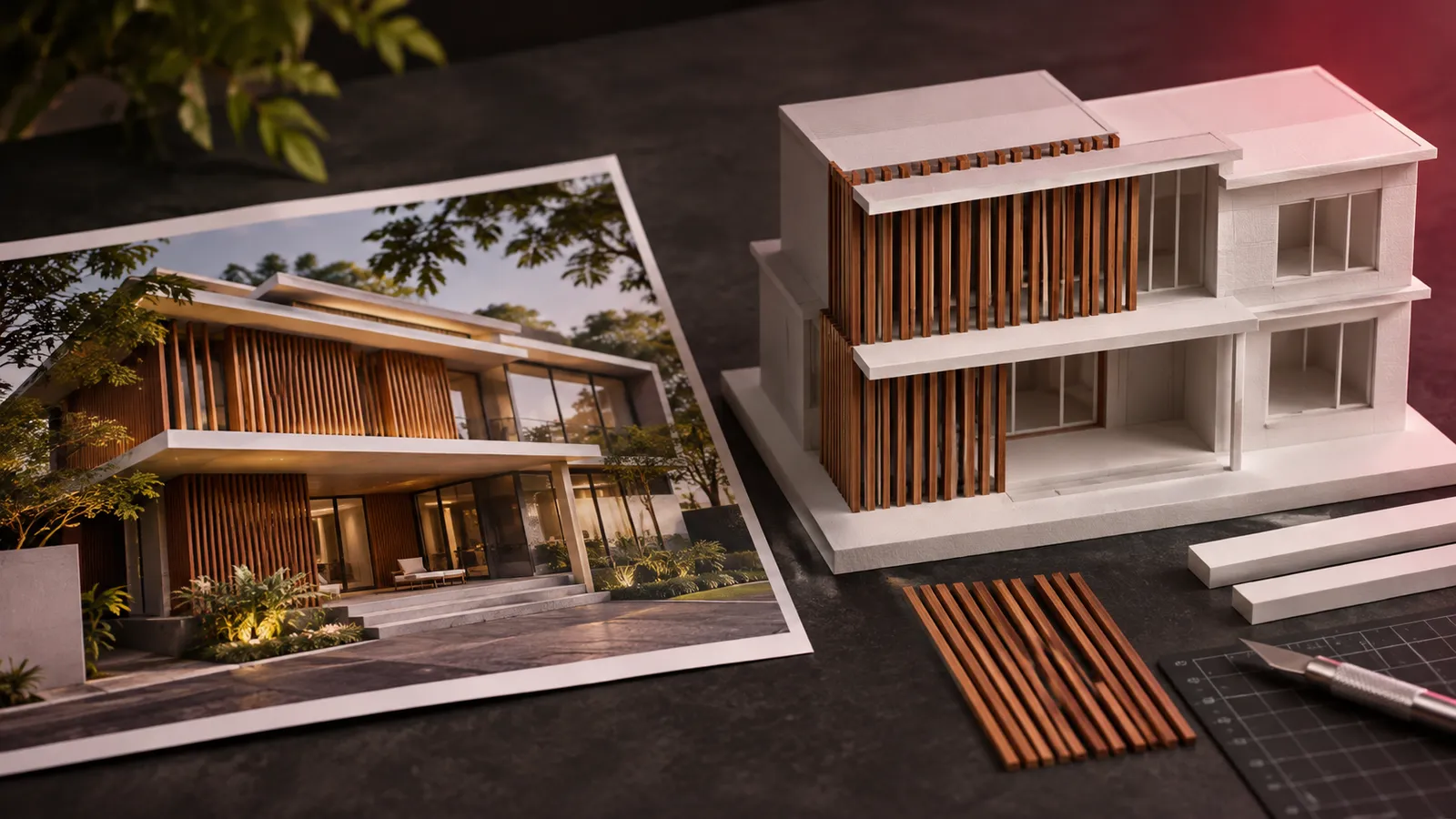
How to use it · 3 steps
Step by step.
- 1
Match the palette
Edit tab → Match a reference photo. Materials change on the matching parts of your model.
- 2
Add façade elements
Edit tab → Pick a façade → click a wall → Propose elements from a reference photo.
- 3
Accept what you like
Each proposal has an Add button. Undo removes any of them.
What you get
Reference → model, in short.
Questions
Good to know.
Does it copy the reference building?
No — only its materials and façade elements. Your massing and openings never change.
Can I tweak spacing?
Yes — adjust spacing, depth and colour before adding.
Is it available now?
Part of 3D Studio, opening to early-access studios first.
Works well with
Next steps.
 Early access
3D Studio
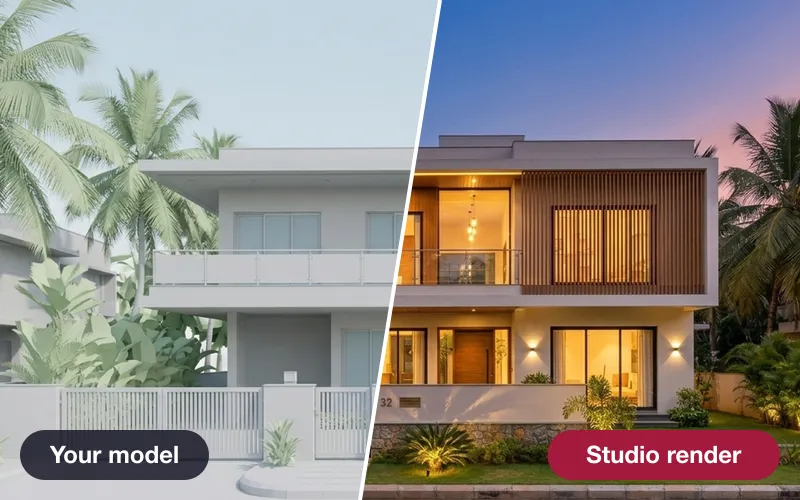
Upload your real model, walk it in the browser, light it with the true sun and render any view — nothing invented.
How it works →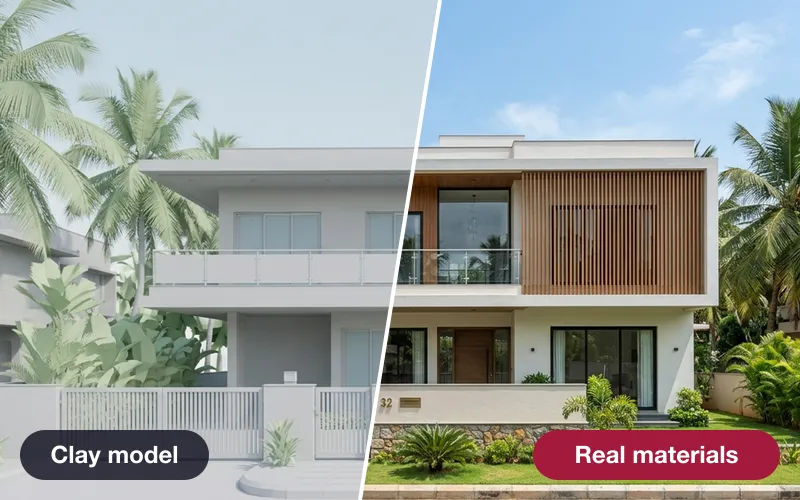 Early access
Real materials, true size
Brick, tile, stone and wood drawn at their real size — or a photo of a real product, sized by AI.
How it works →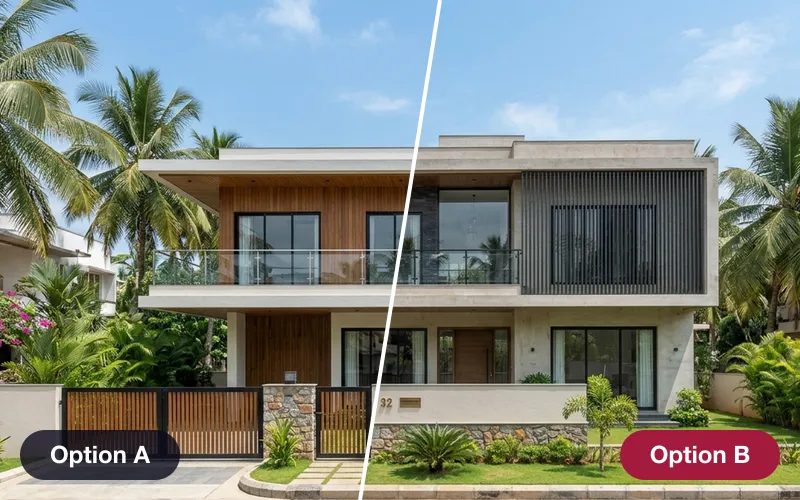 Early access
Design options & versions
Save looks as options, compare them side by side from the same camera, and see exactly what changed between versions.
How it works →3D Studio · early access
Be one of the first studios in.
Tell us about your practice and we'll open the 3D Studio for you first.