Option A or B? Like for like.
Save each look as an option, switch instantly, and render every option from the same camera with the same seed — so the client compares designs, not luck. Compare any two versions and every change is outlined.
Part of 3D StudioOpening to early-access studios first
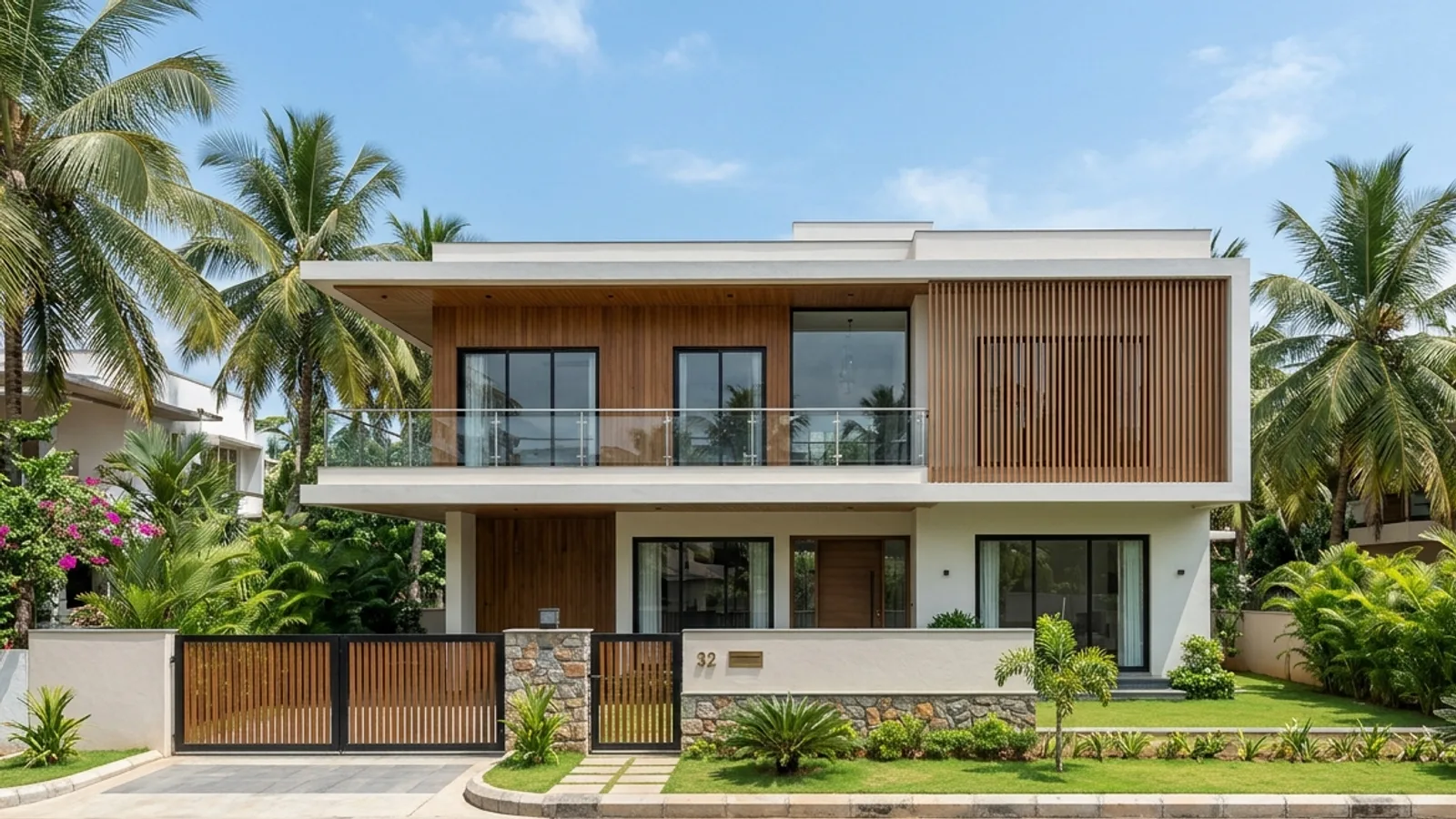
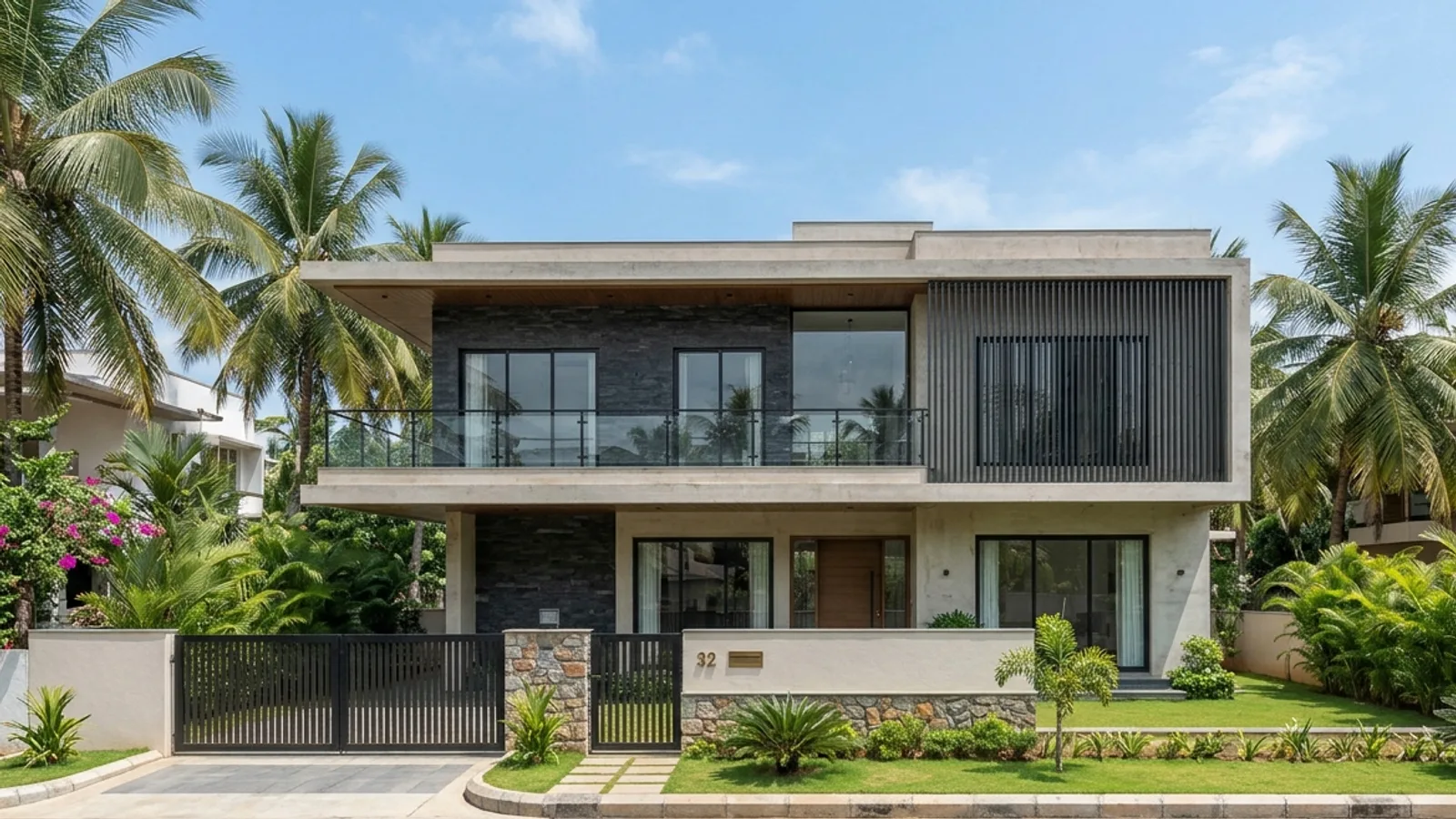 Option AOption B
How to use it · 3 steps
Step by step.
- 1
Save options
Options tab → change materials in Edit → Save current look as an option. Repeat.
- 2
Compare side by side
Options tab → Side-by-side sheet, or Render tab → Render each option.
- 3
Compare versions
Options tab → Compare with another version → pick the earlier one → Compare.
You bringOption AYou getOption BWhat you get
Design options & versions, in short.
Questions
Good to know.
Are options separate models?
No — they're saved looks on the same model, so the geometry stays identical.
How are versions matched?
Part by part, by name. Changes are listed and outlined in 3D.
Is it available now?
Part of 3D Studio, opening to early-access studios first.
Works well with
Next steps.
 Early access
Reference → model
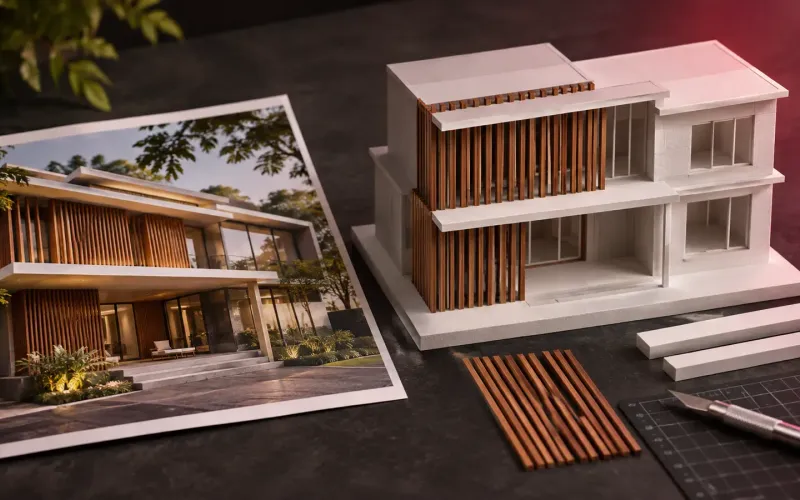
Show a photo the client likes; Visulixx applies its palette and façade elements to your model — accept each change.
How it works →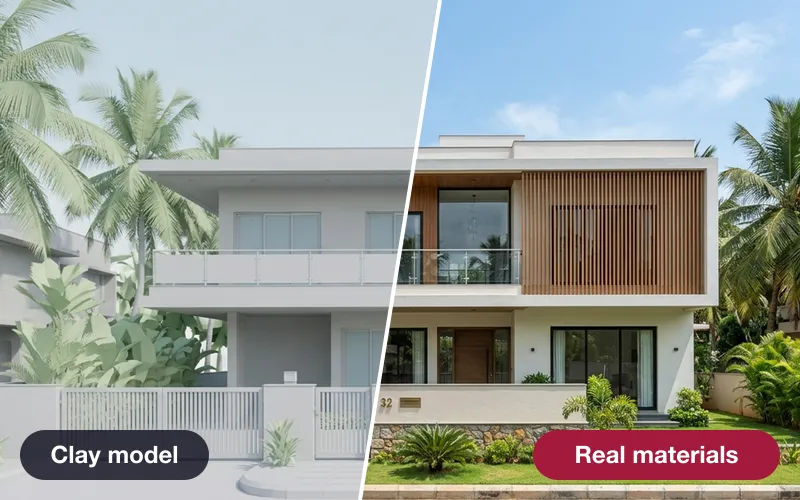 Early access
Real materials, true size
Brick, tile, stone and wood drawn at their real size — or a photo of a real product, sized by AI.
How it works → Early access
Presentation deck
One click makes an A3 PDF: cover, every saved view, the floor plan and the quantities.
How it works →3D Studio · early access
Be one of the first studios in.
Tell us about your practice and we'll open the 3D Studio for you first.